
 By Elson Correia
Often enough, you get to deal with some set of data that you must list to the user. This can be in a dropdown, table, or standard list(stack) format. The tricky things you run into allowing the user to do various common actions to this list like sorting, grouping, searching, etc. Well, if what you use is React, you will love this tool…
Take into consideration this array of people…
[
  {firstName: 'Elson', lastName: 'Correia', info: {age: 24}},
  {firstName: 'John', lastName: 'Doe', info: {age: 18}},
  {firstName: 'Jane', lastName: 'Doe', info: {age: 34}},
  {firstName: 'Maria', lastName: 'Carvalho', info: {age: 22}},
  {firstName: 'Kelly', lastName: 'Correia', info:{age: 23}},
  {firstName: 'Don', lastName: 'Quichote', info: {age: 39}},
  {firstName: 'Marcus', lastName: 'Correia', info: {age: 0}},
  {firstName: 'Bruno', lastName: 'Gonzales', info: {age: 25}},
  {firstName: 'Alonzo', lastName: 'Correia', info: {age: 44}}
]
🚫 No more mapping data in the template
In React what developers normally do is map the data directly in the template which means that on every render the template will go over list without mentioning that it can get very ugly the more logic you add.
{people.map((person, idx) => (
  <li key={idx}>
    <b>{person.firstName} {person.lastName}</b> (<span>{person.info.age}</span>)
  </li>
))}
A better solution would be to memo the data to avoid needless computations and handle the list outside the template but you would still need to map the data. However, the problems with dealing with a data list are does not stop here.
There are a lot of common list operations that you will need help with…searching, filtering, pagination, infinite scrolling, etc.
Fortunately, there is a popular package that handles all that and more…
✅ FlatList React
If you have ever tried the FlatList component in React Native this will feel very familiar. The FlatList React component was inspired by its React Native cousin but they are not the same. They both handle lists but dont share most of the API.
This single package handles:
- Searching;
- Filtering;
- Sorting;
- Grouping;
- Pagination;
- Infinite scrolling;
- Scrolling to top functionality;
- and more…
flatlist-react *A helpful utility component to handle lists in react like a champ. Latest version: 1.5.1, last published: 2 days ago…*www.npmjs.com
To render our list of people above it would be as simple as
<FlatList
  list={people}
  renderItem={renderPerson}
  />
Where the renderPerson function could look like this:
const renderPerson = (person, idx) => {
  return (
    <li key={idx}>
      <b>{person.firstName} {person.lastName}</b> (<span>{person.info.age}</span>)
    </li>
  );
}
Or better…simply create a Person component (recommended):
const Person = ({firstName, lastName, info}) => {
  return (
    <li>
      <b>{firstName} {lastName}</b> (<span>{info.age}</span>)
    </li>
  );
}
Then pass it to the FlatList…
<FlatList
  list={people}
  renderItem={Person}
  />
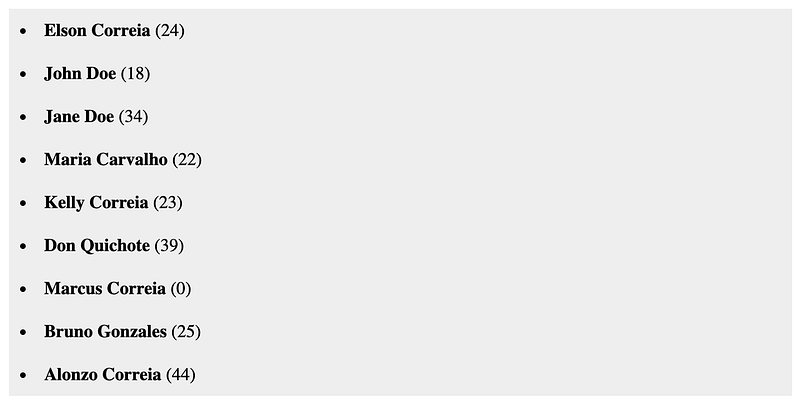
All keys of the person object item become an individual prop for our Person component which means the Person component takes the Person type/interface — if you use typescript.
Rendering
As you could see above rendering is super easy. Simply specify your list-like object and a function or component that will render each item.
Note that I said list-like! This is because thelist prop can be Map, Set, Object Literal, or an Array which removes the need to convert the data to an array before using it.
By default, it puts the item straight into the document with react Fragment but you can specify which tag should wrap the items and pass attributes to it as if you were interacting with that tag directly.
<FlatList
  list={people}
  renderItem={Person}
  wrapperHtmlTag="ul"
  id="people-list"
  />
You may also control how the list is displayed. Below will force the items to take full with of their parent element and be stacked with 10 pixels of gap between them.
<FlatList
  displayRow
  rowGap="10px"
  list={people}
  renderItem={Person}
  />
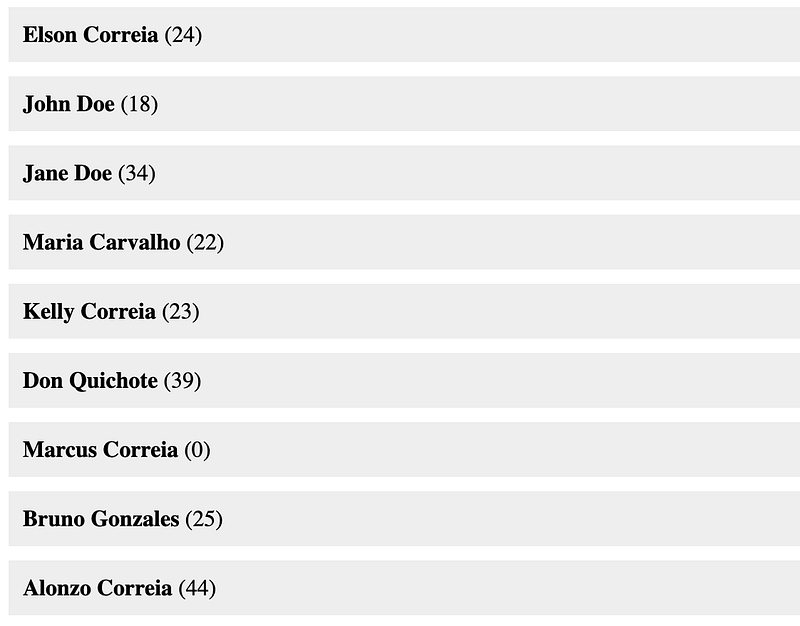
Just as easy, you can create a grid — a responsive one — where each item takes as much space as it needs and all I need to specify are the optional minColumnWidth and gridGap props to control how the items display.
<FlatList
  displayGrid
  gridGap="10px 15px"
  minColumnWidth="150px"
  list={people}
  renderItem={Person}
  />
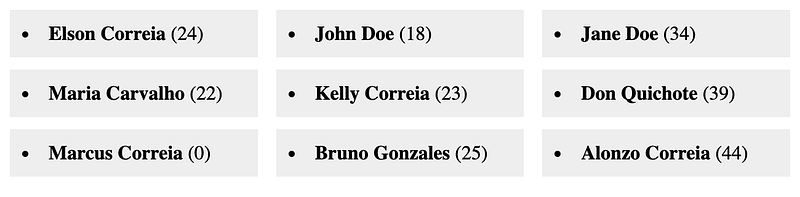
Conveniently, you can specify what should be rendered when the list provided is or become empty due to some action (filtering, search, etc). It can be a function that returns JSX or a react component.
<FlatList
  list={people}
  renderItem={Person}
  renderWhenEmpty={() => <div>No Items</div>}  />
The renderWhenEmpty is powerful because you can use it to display spinners, no-match search results messages, or a message letting the user know there are no items for whatever reason. It’s totally up to you…here Is an example
const handleEmptyList = () => {
  if(searchTerm && !searchResults.length) {
    return <div>Nothing matched your search</div>;
  }
  if(listLoading) {
    return <LoadingSpinner/>
  }
  return <div>List is empty</div>;
}
Another thing you might need to do to a list is reverse it. Well, it's easy to do with FlatList.
<FlatList
  reversed
  list={people}
  renderItem={Person}
  />
…what about putting a limit on how many items on the list should be rendered? Piece of cake!
<FlatList
  limit={5}
  list={people}
  renderItem={Person}
  />
The limit prop also works like the Array slice method. Simply specify the range of the items that should display and voila! It handles open-ended format and even negative values to start counting from the end of the list.
<FlatList
  limit="2,-2"
  list={people}
  renderItem={Person}
  />

Searching
If your list is of strings, searching is as easy as providing a search term as searchTerm prop. Because our person is not a string, we need to provide one or many keys to search on.
<FlatList
  searchTerm={searchTerm}
  searchBy="firstName"
  searchCaseInsensitive
  list={people}
  renderItem={Person}
  />
Above I specified to search on the firstName property case insensitive. We can provide as many keys to search on as we want. You do that by passing an array of keys.
<FlatList
  searchTerm={searchTerm}
  searchBy={['firstName', 'lastName']}
  searchCaseInsensitive
  list={people}
  renderItem={Person}
  />
The cool thing about these keys is that you can use dot notation (property accessors) to indicate deep/nested keys. For example, I can ask it to search on info.age.
<FlatList
  searchTerm={searchTerm}
  searchBy={['firstName', 'lastName', 'info.age']}
  searchCaseInsensitive
  list={people}
  renderItem={Person}
  />
For a more powerful match, you can specify if you want each word you type to be used as a search term or not by providing the searchOnEveryWord prop.
<FlatList
  searchTerm={searchTerm}
  searchBy={['firstName', 'lastName', 'info.age']}
  searchCaseInsensitive
  searchOnEveryWord
  list={people}
  renderItem={Person}
  />
For example, if I have a search term “john doe” by default it will only match strings that match everything I typed. Thats an exact match. When you activate the “search on words”, it will match any string with “john” and “doe” in whatever order and independently of the other. Thats because it treats each word you type as a search term.
By default, it looks for the search term in the value but If you truly desire to control how the search should work, you can provide a function that is called per item so you can do the matching.
<FlatList
  searchTerm={searchTerm}
  searchBy={(item) => item.firstName.toLowerCase === searchTerm.toLowerCase}
  list={people}
  renderItem={Person}
  />
Speaking of more control, you may also tell it how big the search term should be before trying to match.
<FlatList
  searchTerm={searchTerm}
  searchBy={['firstName', 'lastName', 'info.age']}
  searchCaseInsensitive
  searchOnEveryWord
  searchMinCharactersCount={3}
  list={people}
  renderItem={Person}
  />
To simplify the search props, you can use the search shorthand prop. This makes it a much easier way to read search options and treat them as a config the parent component can consume, for example.
<FlatList
  search={{
    term: searchTerm,
    by: ['firstName', 'lastName', 'info.age'],
    caseInsensitive: true,
    onEveryWord: true,
    minCharactersCount: 3
  }}
  list={people}
  renderItem={Person}
  />
Most of the FlatList props have shorthand by the way.
Filtering
Filtering is another capability and you can simply provide a key to filter by and it's done whether the value is truthy or falsy. Below will include a person whose age is not zero.
<FlatList
  filterBy="info.age"
  list={people}
  renderItem={Person}
  />
You may also handle the filtering yourself by providing a callback function. Below will only include people more than 18 years of age.
<FlatList
  filterBy={person => person.info.age > 18}
  list={people}
  renderItem={Person}
  />
The search functionality we saw before is built on top of the filtering to be more specific. Similarly, you can build your own filtering functionality as well to cater to your project or use case.
Sorting
To sort your list is as easy as providing a sort prop.
<FlatList
  sort
  list={people}
  renderItem={Person}
  />
The above will not have any effect on our list of people because the list is not of primitives, but it will work for something like the below without the gotchas of javascript sorting.
<FlatList
  sort
  list={[3, 65, 90, 1, 12, 83, 45, 33]}
  renderItem={n => <li>{n}</li>}
  />
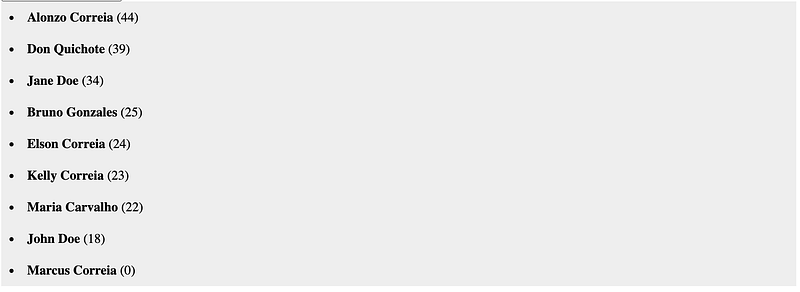
For our list of people, we must specify one or many keys to sort by with the sortBy prop. It works with the dot notation as well. Below will list people from youngest to oldest.
<FlatList
  sortBy="info.age"
  list={people}
  renderItem={Person}
  />
You can also sort in descending order and even case insensitive.
<FlatList
  sortBy="firstName"
  sortDescending
  sortCaseInsensitive
  filterBy="info.age"
  list={people}
  renderItem={Person}
  />
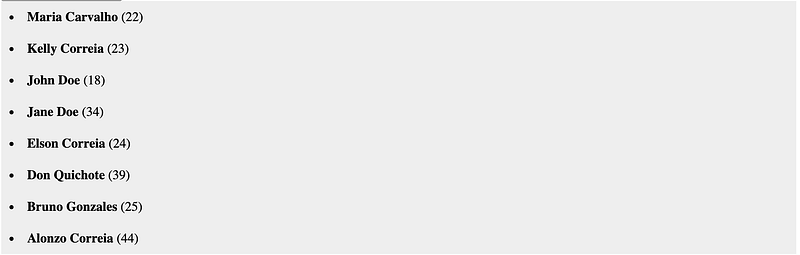
For a more powerful sort, you can provide multiple sorting keys and specify the sorting direction and case sensitivity for each. This is particularly awesome if you are rendering the items as table rows.
<FlatList
  list={people}
  renderItem={Person}
  sortBy={[
    {key: "info.age", descending: true},
    {key: "lastName", descending: false},
    "firstName"
  ]}
  />
Grouping
Grouping a list into chunks was never easier. You can start by making equal size groups on your list with the groupOf prop.
<FlatList
  list={people}
  renderItem={Person}
  groupOf={3}
  />
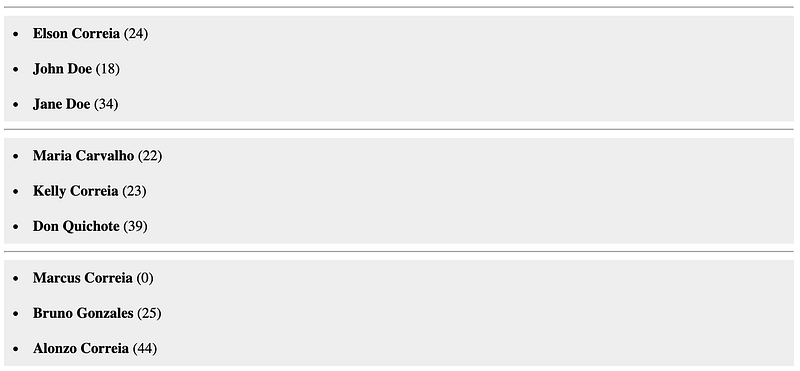
By default, it will add a line between the groups but you can render whatever you want by specifying the groupSeparator prop which takes a callback function that is called with the group (array of all items in that group), the index in the list in which the separator was inserted, and the group label which by default is the index of the group.
<FlatList
  list={people}
  renderItem={Person}
  groupSeparator={personGroupSeparator}
  />
const personGroupSeparator = (group, idx, groupLabel) => (
  <p>{groupLabel}</p>
)
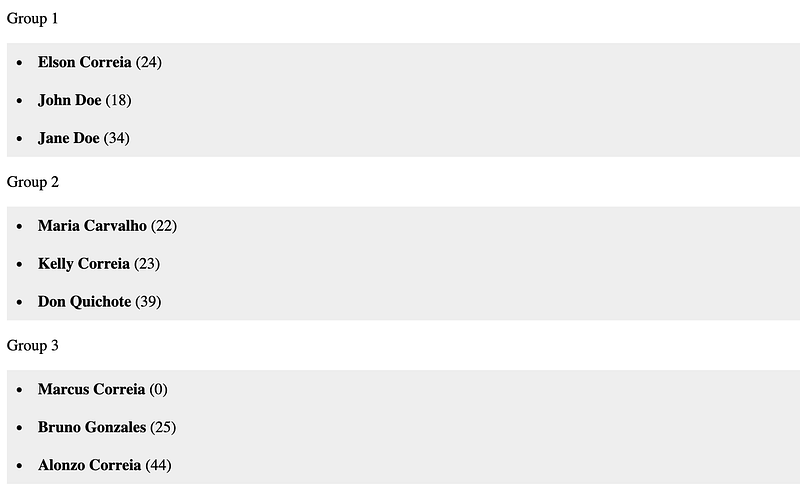
You may also want to show — for whatever reason — the separator at the bottom which you can do by specifying the groupSeparatorAtTheBottom prop.
<FlatList
  list={people}
  renderItem={Person}
  groupSeparator={personGroupSeparator}
  groupSeparatorAtTheBottom
  />
Just like search, sort, and filter, you can group by a specific key.
<FlatList
  list={people}
  renderItem={Person}
  groupSeparator={personGroupSeparator}
  groupBy="lastName"
  />
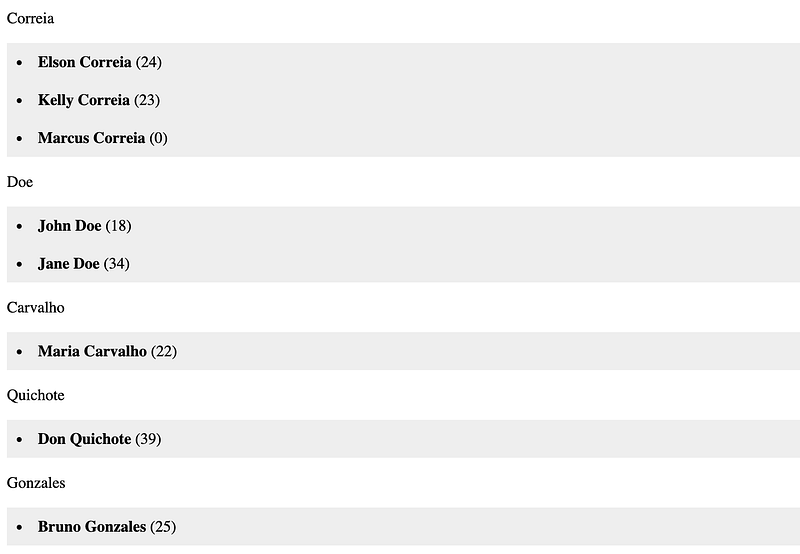
The groupBy also allows you to return a label based on whatever logic you want. Below will group by over and under 30 with a specific label.
<FlatList
  list={people}
  renderItem={Person}
  groupSeparator={personGroupSeparator}
  groupBy={groupingHandling}
  />
const groupingHandling = (person) => (
   person.info.age > 30
    ? "Over 30"
    : "Under 30"
);
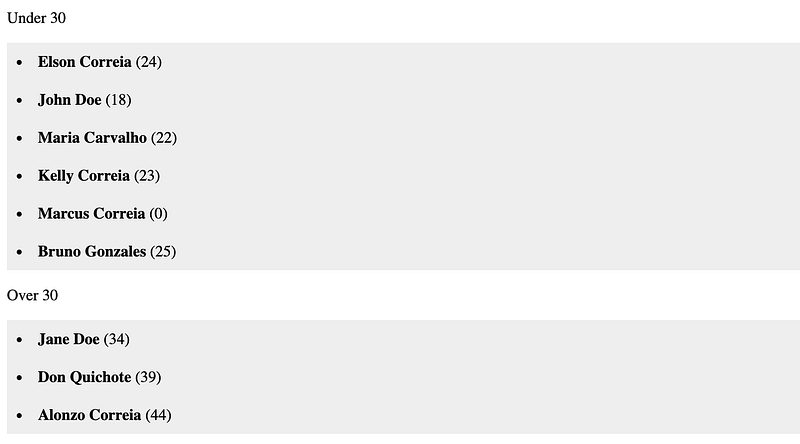
The group control does not stop there. You can reverse and sort at a group level as well. Here is an example with the group prop shorthand. The sort and reverse options work just like I showed you before.
<FlatList
  list={people}
  renderItem={Person}
  group={{
    by: (person) => (person.info.age > 30 ? "Over 30" : "Under 30"),
    separator: personGroupSeparator,
    separatorAtTheBottom: false,
    reversed: false,
    sortedBy: "info.age",
    sortDescending: true,
    sortCaseInsensitive: true
  }}
  />
Pagination
If you work with API and fetching data, a built-in handler for pagination is all you need. Simply tell it if the list is incomplete and what to call to get more. FlatList handles the rest.
const showBlank = () => {
    if (!people.length && loadingItems) {
        return <div>Loading list...</div>
    }

    return <div>No items in this list</div>
}
...
<FlatList
  list={people}
  renderItem={Person}
  renderWhenEmpty={showBlank}
  hasMoreItems={hasMoreData}
  loadMoreItems={fetchData}
/>
Note: the container must have overflow scroll.
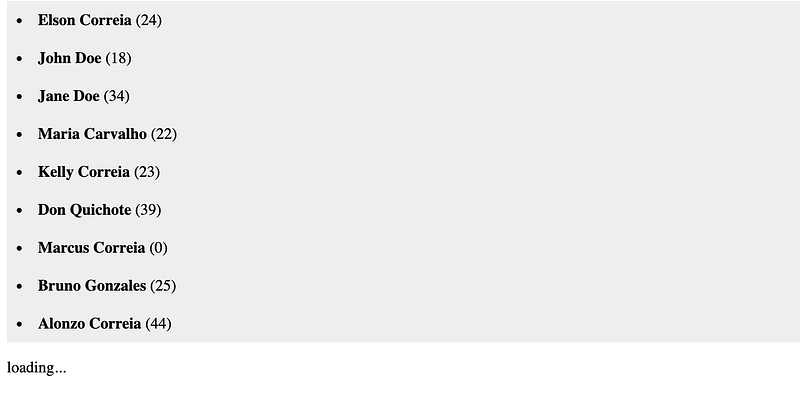
By default, while it's fetching the next page/batch of your list, it will place a “loading…” indicator at the end of the current list on the left but it's very basic. Conveniently you can provide a component to show your favorite loading component.
<FlatList
  list={people}
  renderItem={Person}
  renderWhenEmpty={showBlank}
  hasMoreItems={hasMoreData}
  loadMoreItems={fetchData}
  paginationLoadingIndicator={SpinnerLoader}
/>
For further controls on the loading indicator, you may also position the loading indicator either left (default), center, or right.
<FlatList
  list={people}
  renderItem={Person}
  renderWhenEmpty={showBlank}
  paginate={{
    hasMore: hasMoreData,
    loadMore: fetchData,
    loadingIndicator: SpinnerLoader,
    loadingIndicatorPosition: 'center'
  }}
/>
Render on scroll
Pagination is not the only way to optimize your list rendering. You can simply turn on the renderOnScroll and speed up the rendering of your super long list. Below will render a list of 10000000 items easily.
<div style={{height: 400, overflow: "auto"}}>
  <FlatList
    list={Array.from({length: 10000000}, (_, i) => i+1)}
    renderItem={item => <p key={item}>{item}</p>}
    renderOnScroll
    />
</div>
This will take your list and render only when the user scroll to see the items and all you need to make it work is putting your list with a height and overflow or auto or scroll.
Scroll to top
Speaking of long lists and scrolling, sometimes you just need to go back to the top quickly without having to scroll back. Built-in is the option to just show a button that allows users to scroll straight to the top.
<div style={{height: 400, overflow: "auto"}}>
  <FlatList
    list={Array.from({length: 10000000}, (_, i) => i+1)}
    renderItem={item => <p key={item}>{item}</p>}
    renderOnScroll
    srollToTop
    />
</div>
As you can see, the default button is very basic but as you may have guessed, you have another prop that allows you to provide a custom button and even position it wherever you want as well as far the user needs to scroll before the button shows.
<div style={{height: 400, overflow: "auto"}}>
  <FlatList
    list={Array.from({length: 10000000}, (_, i) => i+1)}
    renderItem={item => <p key={item}>{item}</p>}
    renderOnScroll
    srollToTop={{
      button: MyAwesomeScrollToTopButton,
      offset: 150,
      padding: 25,
      position: "top right"
    }}
   />
</div>
Take Away
This component is literally a swiss knife of components. It covers all the essentials when it comes to handling lists. Amazingly you can pair it up with other components which handle lists.
It is powerful, customizable, and easy to build upon. From building full tables and handling complex lists with API this component has just enough so you can focus on what matters. Check it out!
GitHub - beforesemicolon/flatlist-react: A helpful utility component to handle lists in react like… *A helpful react utility component intended to simplify handling rendering list with ease. It can handle grouping…*github.com

YouTube Channel: Before Semicolon Website: beforesemicolon.com